How to Make a Website Mobile Friendly: Step-by-Step
Step-by-step guide to making your website mobile friendly. Covers responsive design, touch targets, fonts, images, testing, and common mobile UX mistakes.
Why Mobile Friendliness Is Non-Negotiable
Over 60% of all web traffic now comes from mobile devices. Google uses mobile-first indexing, meaning it evaluates the mobile version of your site for ranking purposes, not the desktop version. A site that looks great on a laptop but breaks on a phone is effectively invisible to most of your potential audience.
Beyond rankings, mobile friendliness directly impacts your bottom line. Studies show that 53% of mobile users abandon a site that takes longer than three seconds to load. Every mobile UX problem costs you visitors, leads, and revenue.
The good news is that most issues can be resolved with a structured approach and attention to a few core principles.
Set Up the Viewport and Use Responsive Layouts
The foundation of mobile friendliness is the viewport meta tag. Without it, mobile browsers render your site at a desktop width and then scale it down, making everything tiny and forcing users to pinch-zoom.
Add this tag to the <head> section of every page:
<meta name="viewport" content="width=device-width, initial-scale=1">
This tells the browser to match the screen width and set the zoom level to 100%. If your site uses a CMS or website builder, this tag is usually included by default. Verify by viewing your page source.
Responsive layout techniques
Responsive design means your layout adapts to the screen size rather than using fixed pixel widths. Here are the core techniques:
Fluid widths
Replace fixed-width containers with percentage-based or viewport-based widths. A container set to width: 100%; max-width: 1200px; will fill the screen on mobile and cap at a comfortable reading width on desktop.
CSS media queries
Media queries let you apply different styles at different screen widths. Common breakpoints:
- 640px — Small phones
- 768px — Large phones and small tablets
- 1024px — Tablets and small laptops
- 1280px — Desktop and larger screens
Start with mobile styles as your default, then add media queries that progressively enhance the layout for larger screens. This is called mobile-first CSS, and it produces cleaner, more maintainable code.
Flexbox and CSS Grid
Modern CSS layout tools make responsive design dramatically easier than the float-based hacks of the past. Flexbox handles one-dimensional layouts (rows or columns), while CSS Grid handles two-dimensional layouts. Both respond naturally to available space.
A common pattern: a three-column grid on desktop that stacks to a single column on mobile requires just a few lines of CSS Grid with grid-template-columns: repeat(auto-fit, minmax(300px, 1fr));

Optimize Touch Targets, Typography, and Readability
Fingers are less precise than mouse cursors. Design your interactive elements accordingly.
- Minimum tap target size — 44x44 pixels, as recommended by Apple. Google recommends 48x48 CSS pixels. Anything smaller leads to mis-taps and frustration.
- Spacing between targets — Leave at least 8 pixels between clickable elements. Adjacent links or buttons with no gap cause accidental taps.
- No hover-dependent content — Tooltips, dropdown menus, and info cards that only appear on hover are invisible to touch users. Ensure all content is accessible through tap or click.
- Avoid horizontal scrolling — Content that extends beyond the viewport width forces awkward side-scrolling. This is almost always a sign of a fixed-width element that needs to be responsive.
Handle typography and readability
Text that is comfortable to read on a 27-inch monitor can be painful on a 6-inch phone screen.
- Base font size — Use at least 16 pixels for body text. Anything smaller causes mobile browsers to zoom in when users tap an input field, creating a jarring experience.
- Line height — 1.5 to 1.7 times the font size provides comfortable reading on small screens.
- Line length — Aim for 45 to 75 characters per line. On mobile, this usually happens naturally if your container is full-width, but check that text does not run edge to edge. Add horizontal padding of 16 to 24 pixels.
- Font scaling — Use relative units (rem or em) instead of fixed pixels so text scales appropriately across devices. Consider using CSS clamp() for fluid typography that smoothly scales between mobile and desktop sizes.

Step 5: Optimize Images and Media
Images are typically the largest files on any web page and the primary cause of slow mobile load times.
- Responsive images — Use the srcset attribute to serve different image sizes based on screen width. A phone with a 400-pixel-wide viewport does not need to download a 2000-pixel-wide image.
- Modern formats — Serve images in WebP or AVIF format with JPEG or PNG fallbacks. WebP typically reduces file size by 25-35% compared to JPEG at equivalent quality.
- Lazy loading — Add loading="lazy" to images below the fold. This defers loading until the user scrolls near them, dramatically improving initial page load time.
- Aspect ratio hints — Include width and height attributes on image tags to prevent layout shift as images load. The browser reserves the correct space before the image downloads.
- Video considerations — Avoid auto-playing video on mobile. It consumes data, drains battery, and often plays without sound, making it useless if the content depends on audio.
Test on Real Devices and Avoid Common Mistakes
Browser DevTools responsive mode is useful for development but is not a substitute for testing on actual phones and tablets. Differences in rendering engines, touch behavior, font rendering, and performance only surface on real hardware.
A practical testing approach:
- Google's Mobile-Friendly Test — Free, immediate feedback on major issues.
- Chrome DevTools Device Mode — Good for layout testing during development.
- Real device testing — Test on at least one iPhone (Safari) and one Android phone (Chrome). These two browsers cover over 90% of mobile users.
- PageSpeed Insights — Tests performance specifically from a mobile perspective and gives actionable recommendations.
If you want to skip the technical overhead entirely, modern website builders handle mobile responsiveness automatically. Platforms like mnml.page generate mobile-friendly layouts by default, so your site looks good on every screen size without writing a single media query.
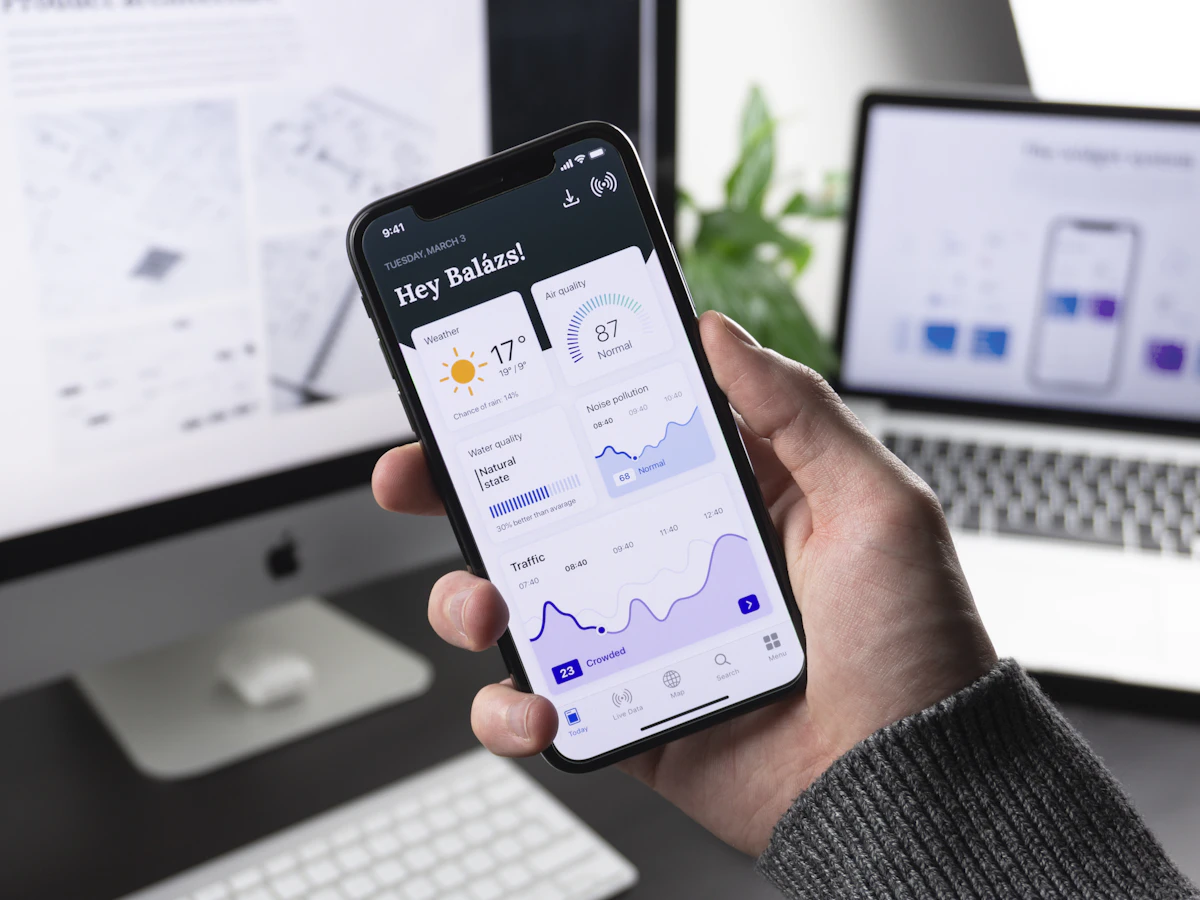
Common mobile mistakes to avoid
Even sites that follow responsive design principles can stumble on these frequently overlooked issues:
- Intrusive pop-ups — Google penalizes sites with interstitials that cover the main content on mobile. If you must use pop-ups, make them easy to dismiss and trigger them after meaningful engagement, not on page load.
- Tiny close buttons — If a modal or banner has an X button that is smaller than 44 pixels, users will rage-tap in frustration.
- Unoptimized forms — Use the correct input types (email, tel, number) so mobile keyboards display the appropriate layout. Nobody should have to toggle keyboard modes to type a phone number.
- Ignoring landscape orientation — Some users hold their phones sideways. Make sure your layout does not break or hide content in landscape mode.
- Fixed-position elements that consume too much space — A sticky header that takes up 25% of the screen on a phone leaves almost no room for actual content.
Mobile friendliness is not a feature you add after the fact. It is a fundamental design requirement that affects your search rankings, your conversion rates, and your visitors' perception of your professionalism. Start with mobile, test on real devices, and treat every tap as an opportunity to delight rather than frustrate. For the next step, make sure your images are not slowing down your mobile experience with our image optimization guide. And if you are building from scratch, our loading speed guide covers additional performance techniques.
Ready to build your site?
Create a beautiful portfolio or personal website in minutes. No code, no complexity.
Get started